
How To

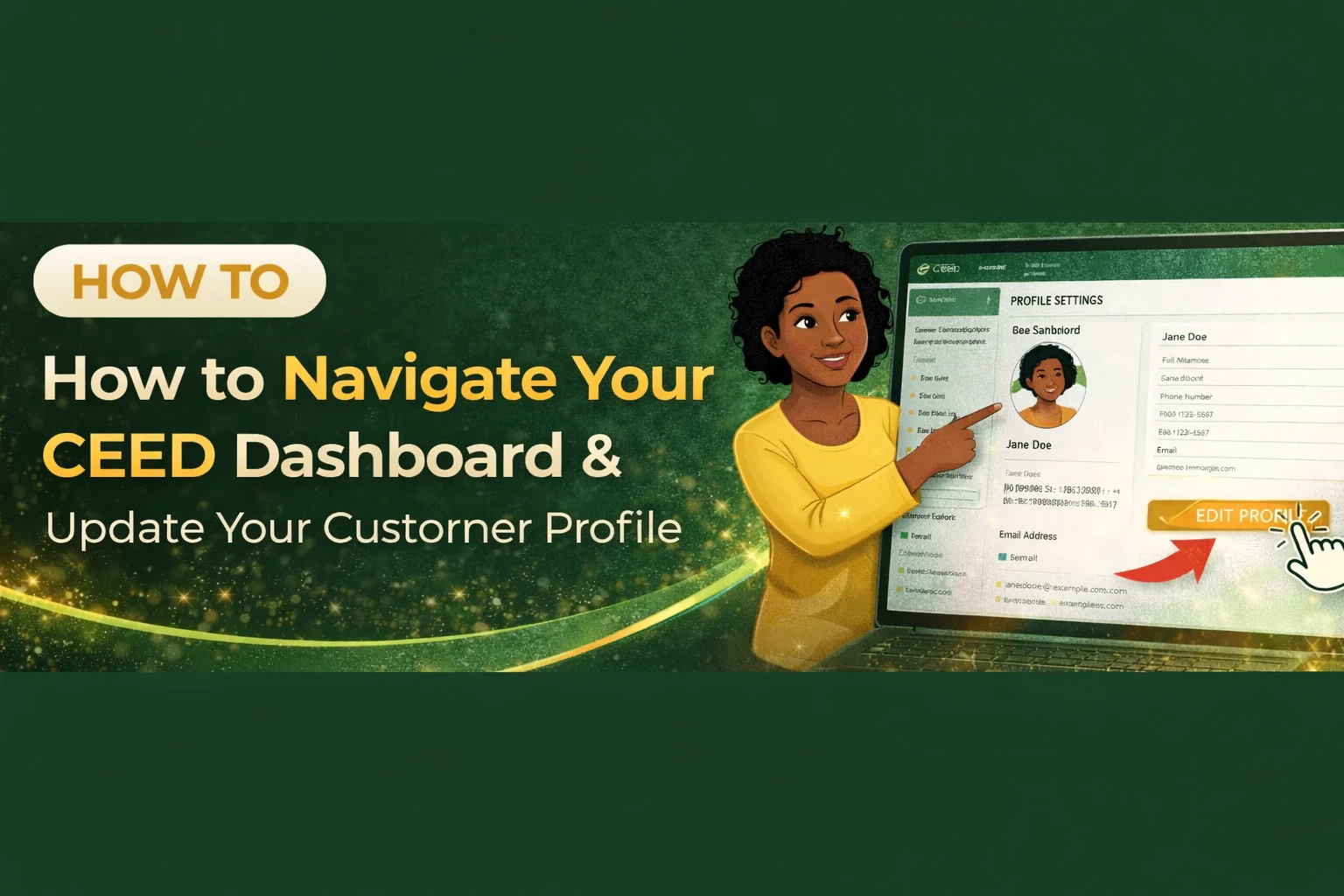
How to Navigate the CEED Dashboard and Update Your Profile – Full Customer Guide

By Ochefije Sunday 3 Views Mar 09, 2026
How to Navigate the CEED Dashboard and Update Your Profile – Full Customer Guide

1. How to Change Your Password on CEED

Changing your password helps keep your account secure. Follow these steps:

Step 1: Open Your Dashboard Menu

  1. Log in to your CEED account.
  2. Click the dashboard button at the top-right corner of the page.
  3. A dropdown menu will appear.

Step 2: Go to Your Profile

You can access your profile in two ways:

Option A (Dropdown):

  1. Click “Profile” from the dropdown.

Option B (Direct Link):

👉 https://www.ceed.africa/user-account

Step 3: Update Your Password

Once your profile page opens:

  1. Scroll to the Password section.
  2. Enter your current password.
  3. Enter your new password.
  4. Confirm the new password.
  5. Click Save or Update Password.

Your password will be updated immediately. ✔️

2. How to Track Deliveries on CEED

CEED allows you to check the progress of your orders easily.

Step 1: Open the Dashboard Menu

  1. Click the dashboard button at the top-right corner.
  2. Choose “Orders” from the dropdown.

Step 2: View Your Orders

You can also open the orders page directly:

👉 https://www.ceed.africa/account-oder

Step 3: Select an Order to Track

  1. Find the order you want to track from the list.
  2. Click “View”, “Track”, or Order Details (depending on your UI).

You will see:

  1. Current delivery status
  2. Estimated delivery timeline
  3. Transport or courier information
  4. Confirmation if the order has been delivered

This makes it easy to know where your package is at any time.

3. How to Use the CEED Marketplace

The CEED marketplace allows you to browse, compare, and order products or services.

Step 1: Go to the Marketplace

  1. On the main menu, click “Marketplace” or the relevant product category.
  2. You can browse items, search, and filter results.

Step 2: View Product/Service Details

Click on any item to see:

  1. Product name
  2. Price
  3. Description
  4. Seller information
  5. Ratings
  6. Photos

Step 3: Add to Cart or Buy

  1. Click “Add to Cart” to continue shopping
  2. or
  3. Click “Buy Now” to proceed immediately.

Step 4: Checkout

  1. Choose your payment method.
  2. Confirm your delivery address.
  3. Place your order.

Your order will now appear in your Orders section.

4. Understanding Your Wallet or Points on CEED

CEED may include a wallet or points system to help customers earn rewards or handle payments.

Step 1: Open Your Dashboard Menu

  1. Click the dashboard button at the top-right.
  2. Look for “Wallet”, “Points”, or “Balance” in the dropdown.

Step 2: Explore Your Wallet

Inside your wallet, you can see:

  1. Current balance
  2. Earned points
  3. Cashback rewards
  4. Transaction history
  5. Credit or debit updates

Step 3: How Points/Wallet Are Used

Wallet funds or points may be used for:

  1. Discount on future purchases
  2. Service fee payments
  3. Loyalty rewards
  4. Special offers

If your system supports wallet top-up, you will also see:

  1. Add Money or Top Up Wallet
  2. Available payment methods